To keep TradeWindow Freight running smoothly and reliably for you and your team, it’s important to log out of the system correctly at the end of each working session, especially when accessing Freight via Parallels.
Many login, access, and performance issues are caused by sessions that were not properly closed or left running in the background. Logging out correctly helps prevent these issues before they start.
Why It Matters
Logging out correctly from TradeWindow Freight and Parallels helps to:
· Fully end your active session
· Free up system resources for you and other users
· Prevent login and access issues the next time you sign in
· Reduce session conflicts and unexpected errors
· Keep your account secure when you’re done for the day
Simply closing the windows or clicking the X button does not fully log you out and can leave your session active on the server.
How to Log Out Correctly
Logout of TradeWindow Freight
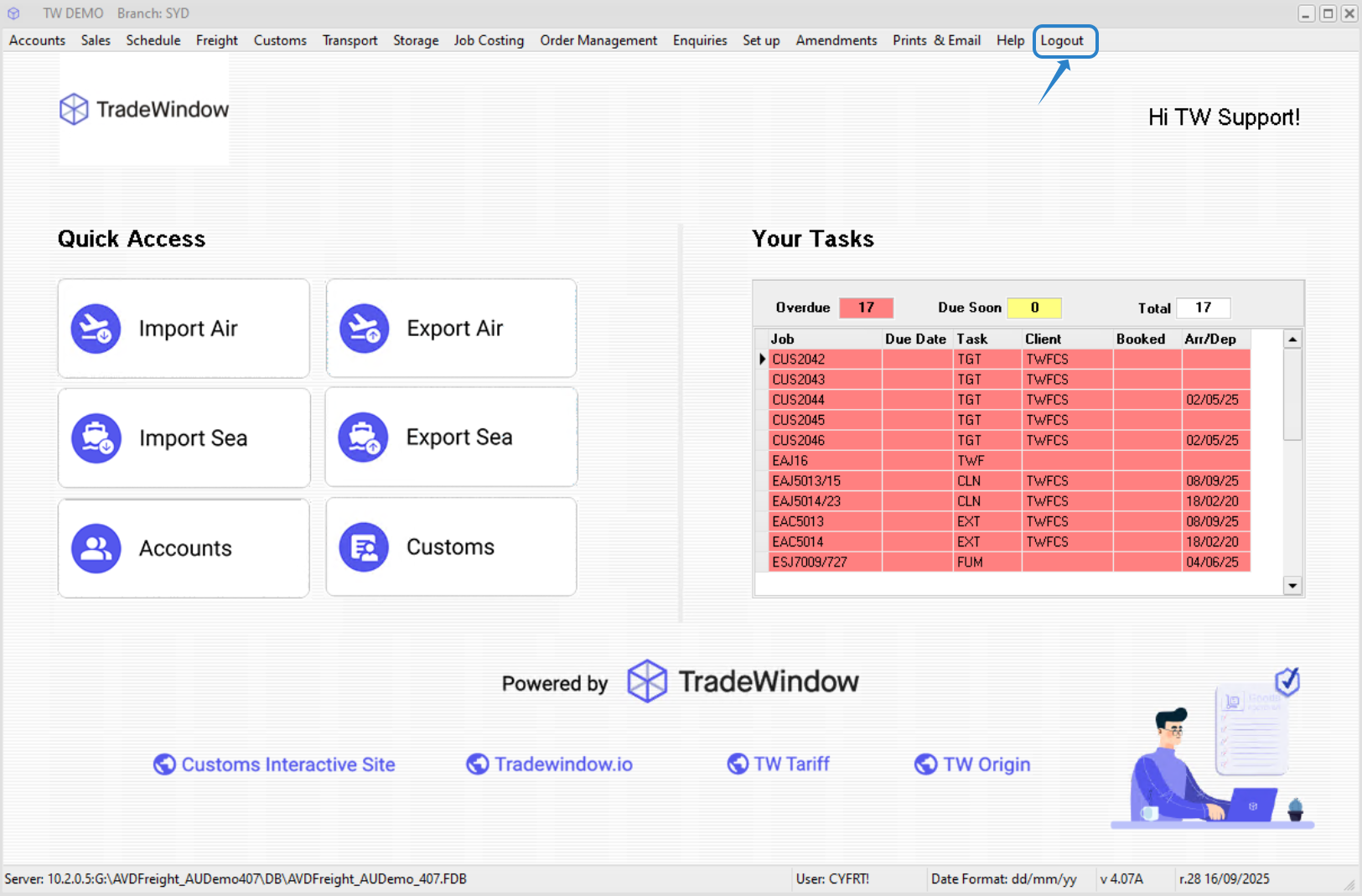
1. Always logout from within TradeWindow Freight application first. This ensures your work is saved and your Freight session is properly closed. Logging out also closes the TradeWindow application.
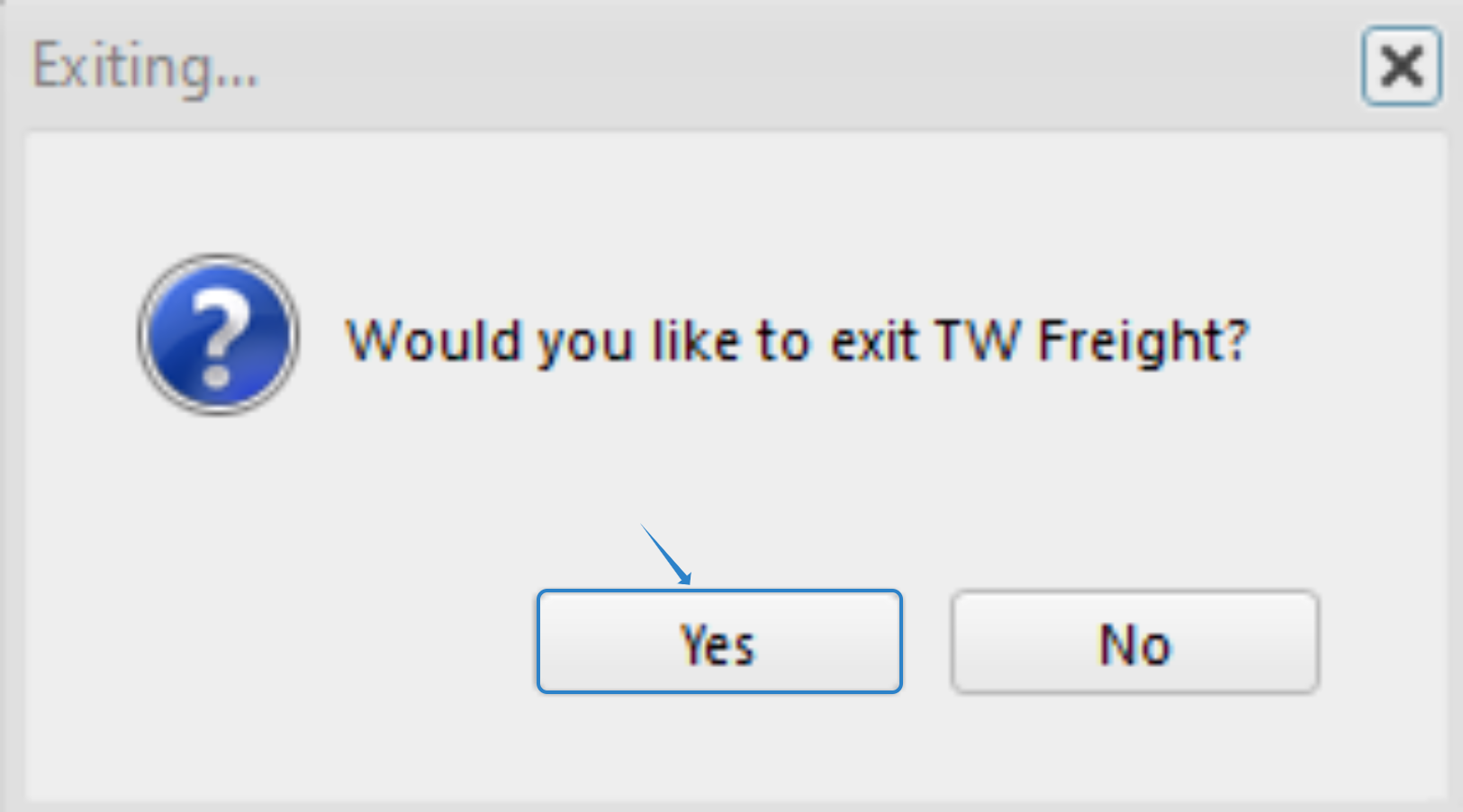
2. You will be asked to confirm that you want to logout.
Logout of Parallels (don’t just close it)
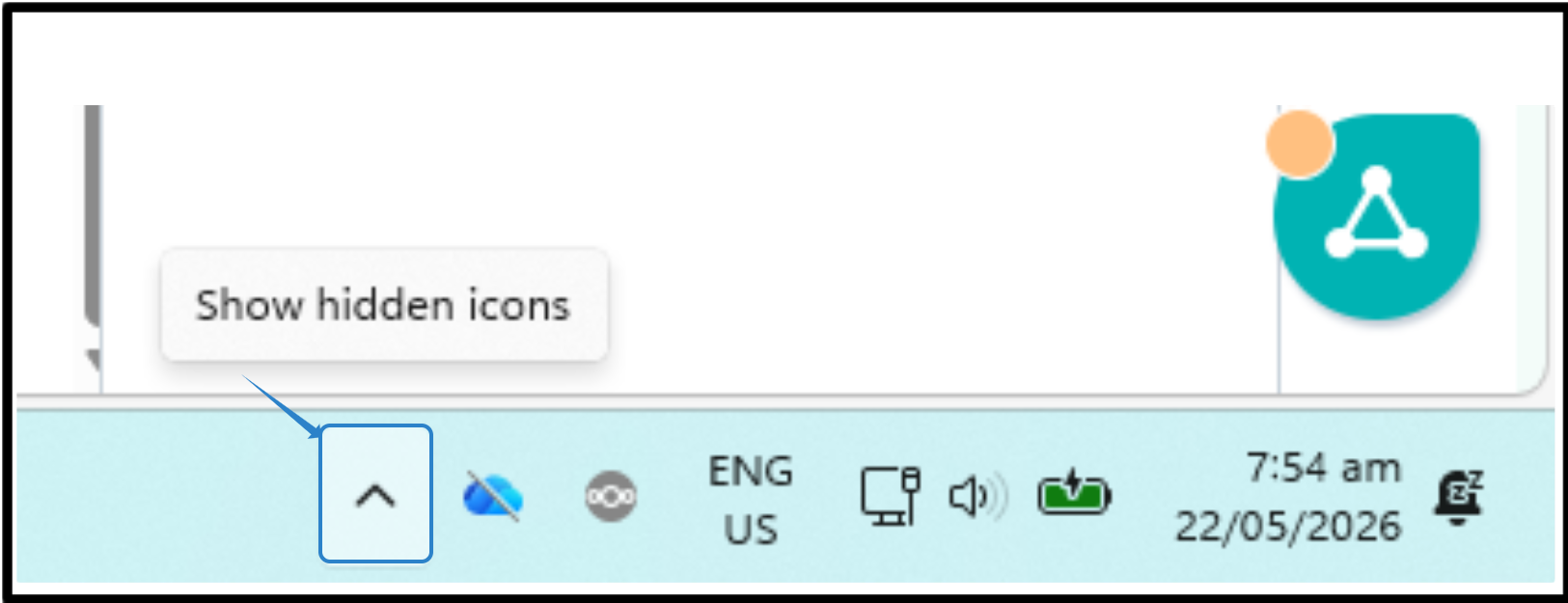
1. Click “Show hidden icons”
For Windows, this is usually on the bottom right of the desktop.
2. Right-Click on “Parallels Client”
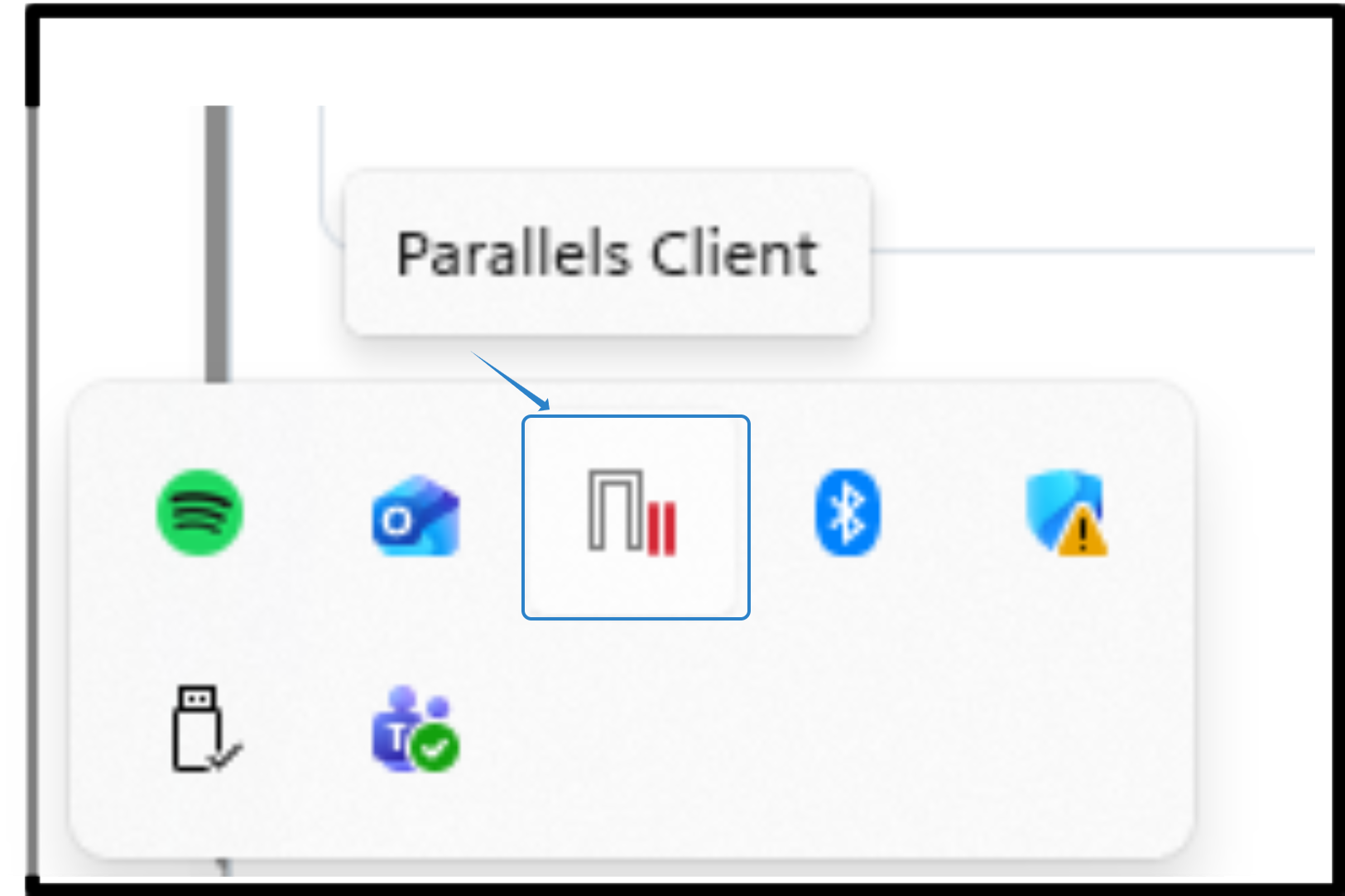
3. When the RAS options pop-out, click the following:
“Disconnect all RAS sessions”
“Log out all RAS sessions”
“Exit”
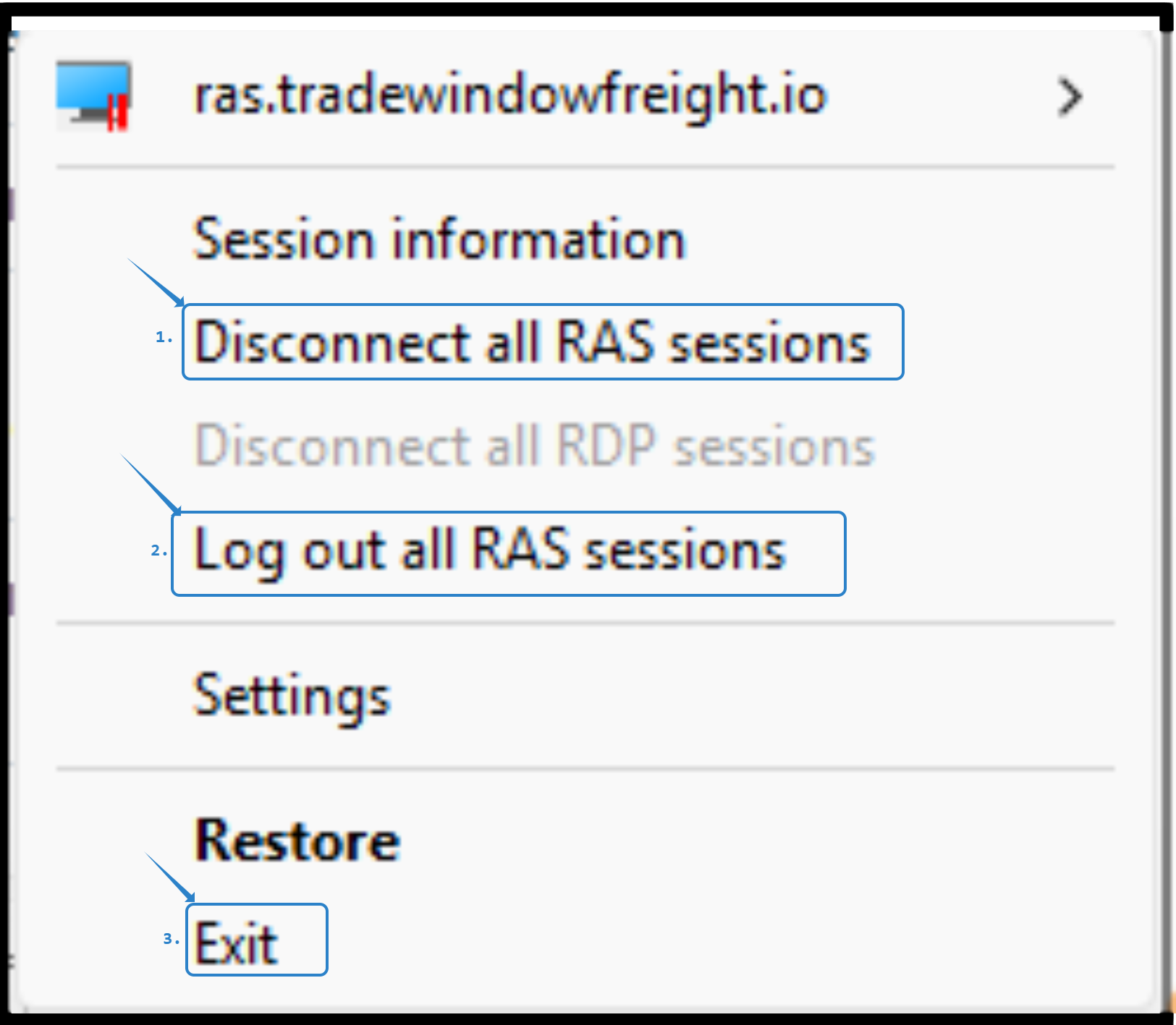
Logging Back In
After logging out correctly from TradeWindow Freight and Parallels, you should be prompted to log back in with your Microsoft account the next time you login.
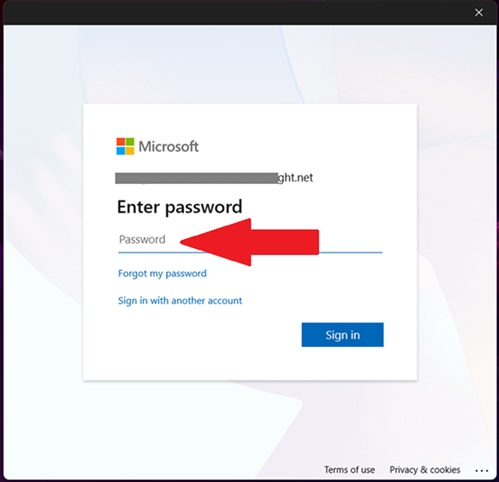
In some cases, this Microsoft sign-in prompt may be hidden behind open folders or other windows. If you don’t see it immediately, please take a moment to:
· Minimize any open folders or applications
· Move windows around your screen
· Look carefully for the Microsoft sign-in prompt
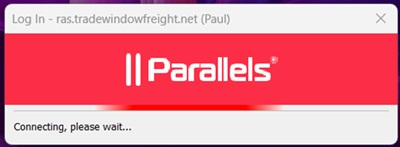
Once located, enter your Microsoft password and select Sign In.
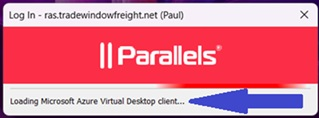
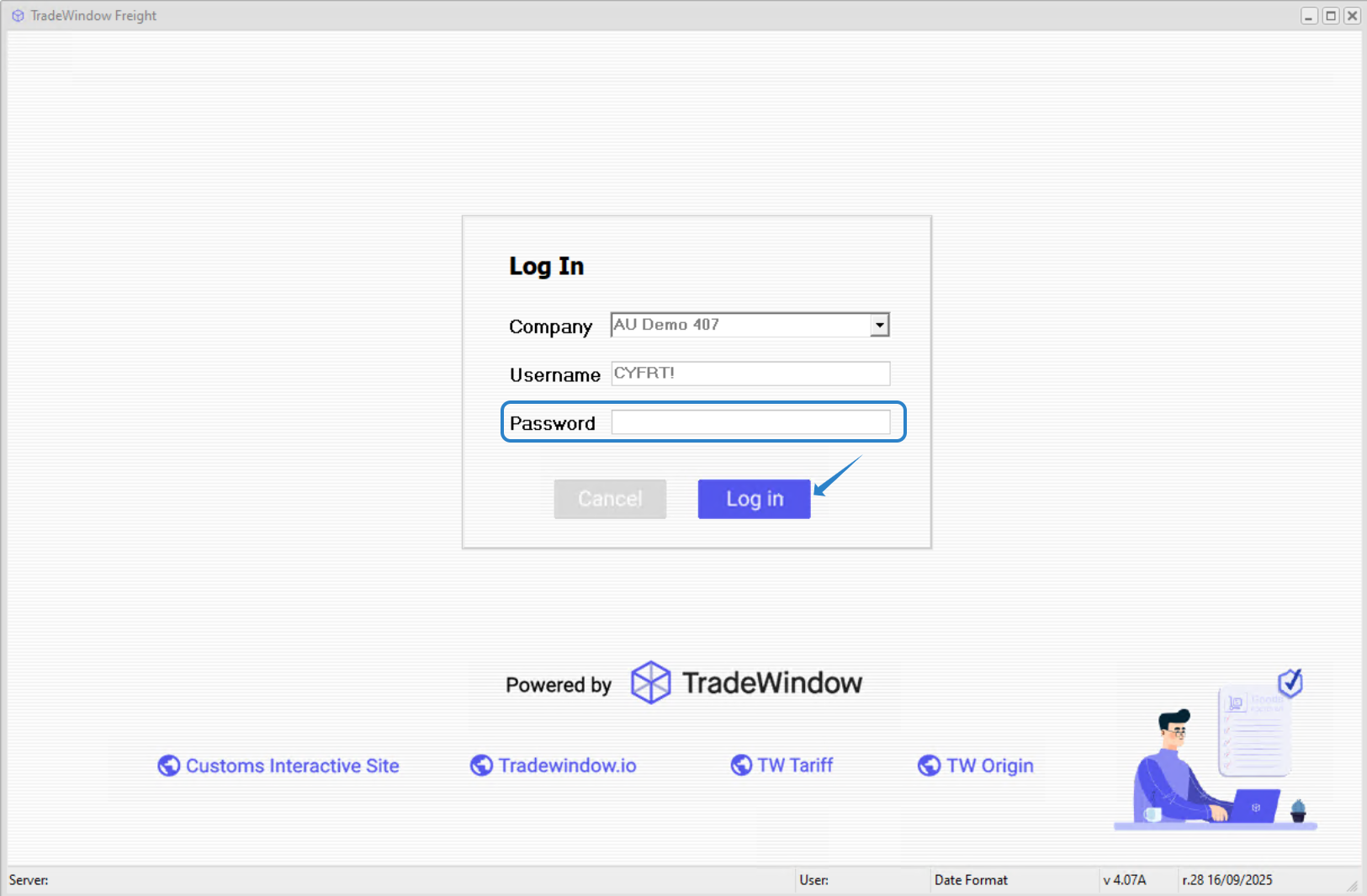
From here, you should be able to login-in to TradeWindow Freight as normal and continue to work without any issues
One User, One Session
Avoid leaving Parallels running in the background or logging in multiple times without logging out. One clean login and logout per user helps keep everything running smoothly.
Need Help?
If you continue to see login issues or aren’t sure whether your session is closing correctly, our teams are here to help.
Email us at: twf_support@tradewindow.io
At TradeWindow, we’re committed to helping you get the best performance and experience from your Freight system, and small steps like proper logout make a big difference.
Was this article helpful?
That’s Great!
Thank you for your feedback
Sorry! We couldn't be helpful
Thank you for your feedback
Feedback sent
We appreciate your effort and will try to fix the article